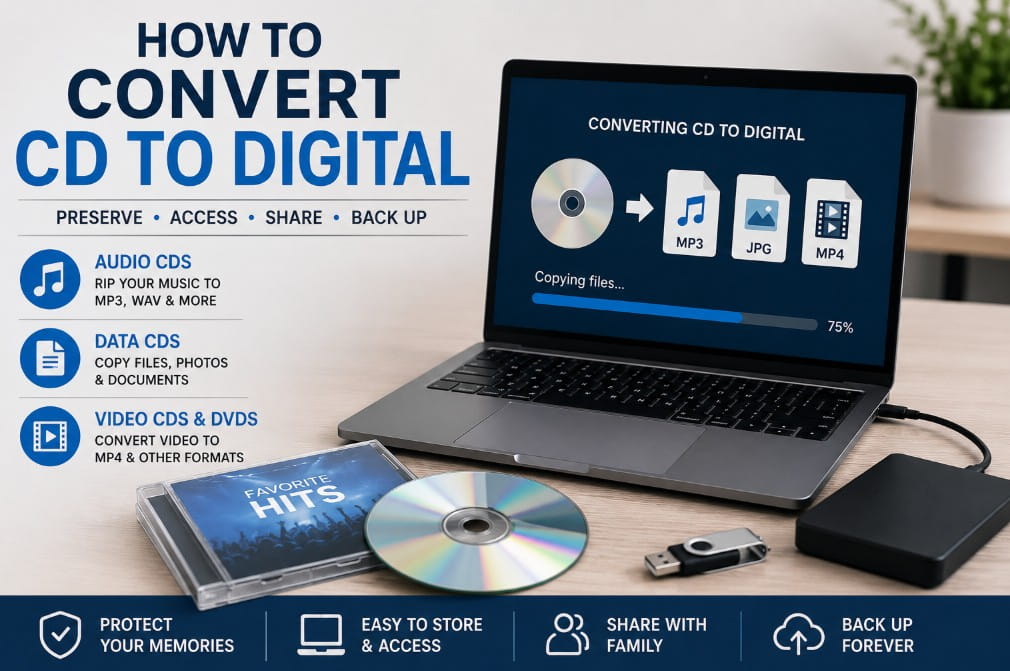
Converting a CD to digital means taking the information from a physical disc and saving it as files that can be used on a computer, phone, USB drive, external hard drive, or cloud storage. Many people still have old CDs sitting in boxes, drawers, binders, or storage cases. Some contain music, photos, documents, business files, family videos, school projects, or other important memories. The problem is that CDs can get scratched, lost, damaged, or become harder to access as newer computers stop including disc drives. If you want to preserve what is on your CDs, converting them to digital files is usually the best option.
Why Convert CDs to Digital?
CDs were useful for many years, but they are not as convenient as digital files. A digital copy is easier to store, copy, share, and back up. Converting CDs to digital can help with:- Preserving important files before the disc gets scratched or damaged.
- Making music, videos, photos, or documents easier to access.
- Backing up old discs to a computer, USB drive, or cloud storage.
- Reducing the need for CD cases, binders, and physical storage.
- Accessing old content on newer computers that no longer have disc drives.
What Types of CDs Can Be Converted?
Not every CD contains the same type of content. Some discs are audio CDs, some are data CDs, and some may contain photos, videos, or mixed files. Common CD types include:- Audio CDs with music or spoken recordings.
- Data CDs with documents, folders, photos, or files.
- Photo CDs with scanned pictures or digital images.
- Video CDs with older video files or disc-based video formats.
- Mixed-content CDs with more than one type of file.
How to Convert an Audio CD to Digital
If you have an audio CD, the process is usually called “ripping” the CD. This means the songs or audio tracks are copied from the disc and saved as digital audio files. Common audio file formats include:- MP3 for smaller, widely compatible files.
- WAV for larger, higher-quality audio files.
- AAC for a common compressed audio format used by many devices.
- A computer with a CD/DVD drive or an external USB disc drive.
- Software that can import or rip audio CDs.
- A place to save the finished files, such as your computer, USB drive, or external hard drive.
How to Convert a Data CD to Digital
A data CD is usually simpler. Instead of ripping audio tracks, you copy the files from the disc to your computer or storage device. To copy a data CD:- Insert the CD into a computer or external disc drive.
- Open the disc in File Explorer on Windows or Finder on Mac.
- Select the files or folders you want to save.
- Copy them to your computer, USB drive, external drive, or cloud folder.
How to Convert CDs With Photos or Documents
Many customers have old CDs that contain family photos, scanned images, school projects, work files, or documents. These discs are usually treated like data CDs. The files can often be copied directly from the CD to a folder on your computer or USB drive. After copying the files, it is smart to organize them into folders and make backup copies. Photos and documents are easy to lose if they are only stored in one place.How to Convert Video CDs or DVDs to Digital
Some discs contain video instead of regular files or audio tracks. These may be Video CDs, DVDs, or discs with video files burned onto them. The conversion process depends on the type of disc. Some discs allow the video files to be copied directly. Others need software to convert the video into a modern file format such as MP4. MP4 is usually a good format because it works on most computers, phones, tablets, TVs, and cloud services. If you are not sure whether your disc is a CD, DVD, video disc, or data disc, a professional digitizing service can inspect it and determine the best way to convert it.Why DIY CD Conversion Can Be Frustrating
Converting one or two CDs may be easy if you have the right equipment and the discs are in good condition. But larger collections can take time. DIY conversion can become frustrating when:- Your computer does not have a disc drive.
- The CD is scratched or hard to read.
- You are not sure which format to choose.
- The disc contains mixed files, photos, video, or old formats.
- You have many discs to convert.
- You want the files organized and delivered in a simple way.
What File Format Should You Choose?
The best file format depends on what is on the CD. For music, MP3 is convenient and works almost everywhere. WAV is larger but can preserve higher audio quality. For photos and documents, the original file format is usually kept when possible. For example, JPG photos, PDF documents, Word documents, or folders can often be copied as-is. For video, MP4 is usually the best choice for everyday use because it is widely supported and easy to share.How to Store Your Digital Files After Conversion
Once your CDs are converted, do not keep the files in only one place. Digital files are easier to copy than CDs, but they can still be lost if a computer crashes or a USB drive fails. Good backup options include:- Your computer.
- A USB drive.
- An external hard drive.
- Cloud storage.
- A second backup kept in another location.