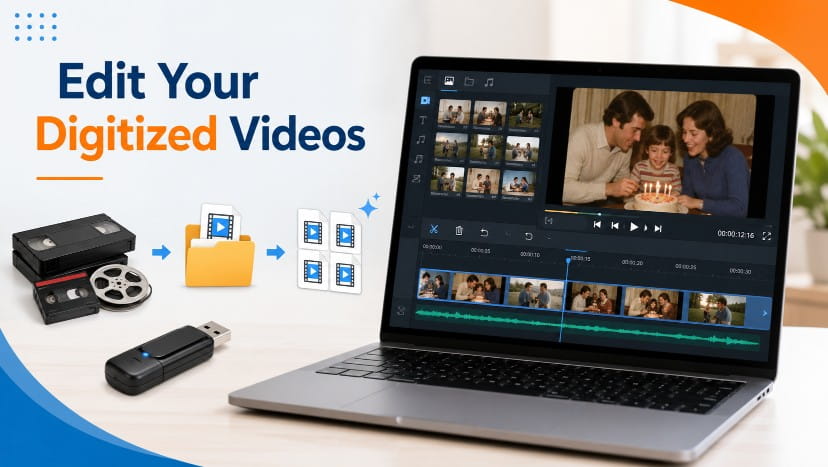
Video editing software can help you trim, organize, and share your digitized videos after your old tapes have been converted to digital files. Once your VHS, VHS-C, Hi8, Digital8, 8mm, MiniDV, Betamax, or other video tapes are converted to MP4 files, you may want to cut out blank sections, remove unwanted parts, create shorter clips, add titles, or share certain moments with family. The good news is that you do not need to be a professional editor to make simple changes to your videos. Many programs are beginner-friendly and work well for basic home video editing.
What Can You Do With Video Editing Software?
After your tapes are digitized, video editing software can help you make the files easier to watch and share. Common editing tasks include:- Trimming the beginning or end of a video.
- Cutting out blank sections.
- Removing unwanted parts.
- Combining multiple clips into one video.
- Adding titles or text.
- Adjusting volume.
- Creating shorter clips for family or social media.
- Exporting a final video as an MP4 file.
Best Simple Option for Windows: Microsoft Clipchamp
For many Windows users, Microsoft Clipchamp is a good place to start. Clipchamp is designed for easy video editing on Windows. It can help you trim videos, combine clips, add text, use templates, and export finished videos. This can be a good option if you want a simple editor and do not want to learn complicated professional software. Clipchamp may be useful for:- Trimming MP4 files.
- Combining family video clips.
- Adding simple titles.
- Creating videos for sharing.
- Basic home video editing.
Best Simple Option for Mac, iPhone, and iPad: iMovie
If you use Apple devices, iMovie is a good beginner-friendly option. iMovie works well for simple video editing, especially if you are already using a Mac, iPhone, or iPad. You can trim clips, combine videos, add transitions, add music, and create a finished movie. iMovie may be a good choice if:- You use a Mac, iPhone, or iPad.
- You want simple editing tools.
- You want to trim and organize family videos.
- You want to make a simple movie from old clips.
Good Option for Social Media Clips: CapCut
CapCut can be useful if you want to create short clips for social media, phones, or quick sharing. It is popular for simple edits, captions, short videos, and social media-style clips. If your goal is to make a short video from an old family tape, CapCut may be easy to use. CapCut may be helpful for:- Short clips.
- Social media videos.
- Quick trimming.
- Adding captions or text.
- Phone-friendly editing.
Best Advanced Free Option: DaVinci Resolve
If you want more powerful editing tools, DaVinci Resolve is one of the strongest options. DaVinci Resolve is much more advanced than basic editing programs. It includes professional tools for editing, color correction, audio, effects, and exporting. This may be more than most customers need, but it can be a great option if you want more control over your videos. DaVinci Resolve may be useful if:- You want professional-style editing tools.
- You are comfortable learning more advanced software.
- You want to adjust color, audio, or video more carefully.
- You have many videos to organize and edit.
- You want more export options.
Best Audio Editing Option: Audacity
If you need to edit audio, Audacity is a popular free audio editor. Audacity is useful for audio files, voice recordings, music, and audio cleanup. It is not mainly for video editing, but it can help if you have audio cassette transfers or audio tracks that need trimming. Audacity may be useful for:- Trimming audio recordings.
- Adjusting volume.
- Exporting audio files.
- Editing MP3 or WAV files.
- Working with audio cassette transfers.
Which Video Editing Software Should You Choose?
The best video editing software depends on what you want to do. Here is a simple guide:- Use Clipchamp if you are on Windows and want simple editing.
- Use iMovie if you are on Mac, iPhone, or iPad.
- Use CapCut if you want quick social media-style clips.
- Use DaVinci Resolve if you want advanced editing tools.
- Use Audacity if you need to edit audio files.
Keep an Original Backup Before Editing
Before editing your digitized videos, make a backup copy of the original file. This is important because if you accidentally cut out the wrong section, overwrite the file, or export it in lower quality, you still have the original version saved. A good backup plan is to keep:- One copy on your computer.
- One copy on a USB drive or external hard drive.
- One copy in cloud storage if possible.
Export Your Edited Video as MP4
For most customers, MP4 is the best format for the finished edited video. MP4 files are easy to watch, save, upload, share, and play on many devices. MP4 usually works well on:- Windows computers
- Mac computers
- iPhones and iPads
- Android phones and tablets
- Smart TVs
- USB drives
- Cloud storage services